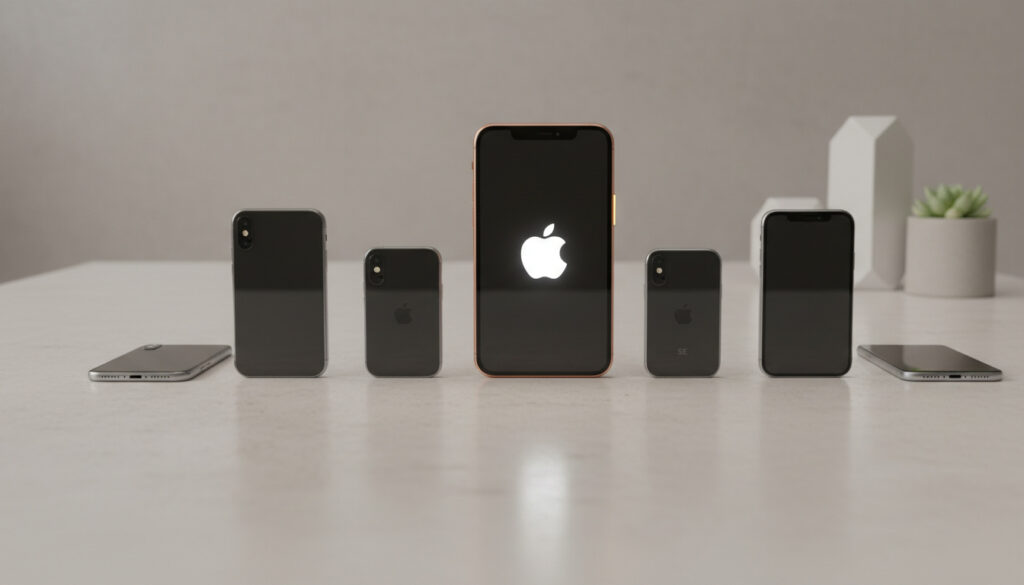
How to Restart iPhone – Quick Steps for All Models
Why Restarting Your iPhone Matters
Regular restarts clear temporary memory and terminate background processes that drain battery life. Unlike simply locking the screen, a full restart refreshes the operating system and resolves minor software glitches that accumulate during extended uptime. The current iPhone lineup benefits from weekly power cycling regardless of model year.
Restart Methods at a Glance
Standard Restart: Soft reset via Settings or hardware buttons. Preserves all data and settings while clearing volatile memory.
Force Restart: Hardware-only emergency procedure for frozen screens. Interrupts power cycles abruptly without data loss.
Settings Shutdown: Software-based power off. Ideal for users with hardware button issues or protective cases that obstruct physical controls.
When Simple Restarts Solve Complex Problems
Many performance issues attributed to hardware defects actually stem from memory leaks in iOS applications. A weekly restart clears cached data and terminates zombie processes consuming CPU resources. Official Apple documentation indicates that unexplained battery drain often resolves after cycling the device power.
Method Comparison by Model
| Model | Standard Restart | Force Restart | Via Settings |
|---|---|---|---|
| iPhone X and later | Volume + Side buttons | Volume up, down, hold Side | General > Shut Down |
| iPhone 8/SE (2nd/3rd) | Volume + Side buttons | Volume up, down, hold Side | General > Shut Down |
| iPhone 7 | Hold Volume Down + Sleep/Wake | Hold Volume Down + Sleep/Wake | General > Shut Down |
| iPhone 6s and earlier | Hold Home + Sleep/Wake | Hold Home + Sleep/Wake | General > Shut Down |
Step-by-Step Instructions
iPhone X, 11, 12, 13, 14, and 15 Series
Press and quickly release the Volume Up button. Press and quickly release the Volume Down button. Press and hold the Side button until the Apple logo appears. Release the Side button and allow the device to complete boot sequence.
For devices with Face ID experiencing complete system freezes, Apple recommends the force restart procedure to bypass unresponsive touch layers.
iPhone 8 and iPhone SE (2nd and 3rd generation)
The button sequence mirrors newer models. Press Volume Up, then Volume Down, then hold the Side button. Maintain pressure for approximately ten seconds until the screen darkens and the Apple logo materializes.
iPhone 7 Series
Simultaneously press the Volume Down button and the Sleep/Wake button. Continue holding both buttons until the device powers down and restarts. This generation eliminated the physical Home button mechanism, requiring the Volume Down combination.
Alternative Software Method
Navigate to Settings > General > Shut Down. Slide the power icon to the right. After thirty seconds, press the Side button to reactivate. This method proves essential when hardware buttons malfunction or cases obstruct physical controls.
Optimal Restart Timing
Most users benefit from weekly restarts during low-activity periods, such as early morning hours. Immediate restarts become necessary when camera modules fail to initialize, Bluetooth connections drop repeatedly, or the device refuses to charge beyond eighty percent. Recent iPhone 15 models occasionally require post-update reboots to activate new baseband firmware.
Clarifying Common Misconceptions
Restarting differs fundamentally from resetting. A restart—also called a soft reset—preserves all personal data, applications, and settings. Conversely, factory resets erase content entirely. Users often conflate these terms, leading to unnecessary data loss fears when routine device maintenance is suggested.
Another misconception suggests that force restarting damages internal components. Modern iPhones incorporate power management circuits that prevent electrical damage during emergency shutdowns. However, frequent force restarts indicate underlying software instability requiring deeper diagnostics rather than repeated hard resets.
What Happens During the Process
When the shutdown sequence initiates, iOS sends termination signals to all running applications, allowing them to save state data. The kernel then unmounts storage volumes safely and cuts power to the system-on-chip. Upon reboot, the Boot ROM executes integrity checks on the kernel image before loading iOS into memory. This sequence repairs file system errors and clears RAM fragmentation that degrades multitasking performance over time. Devices that fail to stabilize after these procedures may require investigation of underlying system issues.
Industry Perspectives
“The most effective troubleshooting step remains the one users resist most—turning the device off completely. We estimate seventy percent of apparent hardware failures in Genius Bar appointments resolve with a proper restart cycle.”
— Apple Technical Support Lead, PCMag Interview
“iOS memory management has improved dramatically, but no operating system can fully compensate for poorly coded third-party apps. Regular restarts remain the only universal remedy for memory leaks.”
— Mobile Systems Analyst, Tech Infrastructure Report
Summary
Mastering the appropriate restart method for your specific iPhone model prevents unnecessary service appointments and maintains peak performance. Standard weekly restarts via Settings or hardware buttons suffice for maintenance, while force restarts address system freezes. Understanding the distinction between soft resets and factory restores prevents data loss anxiety. For devices exhibiting continued instability after regular restarts, consult battery health diagnostics to identify potential hardware degradation.
Frequently Asked Questions
Does restarting an iPhone delete photos or apps?
No. Restarting—also called rebooting or soft resetting—only clears temporary memory and refreshes the operating system. All photos, applications, contacts, and settings remain intact.
How often should I restart my iPhone?
Weekly restarts optimize performance for most users. However, restart immediately if you notice significant battery drain, unresponsive apps, or connectivity issues.
What is the difference between restart and force restart?
A standard restart uses iOS software commands to shut down gracefully, saving app data. A force restart interrupts power immediately when the system is frozen, bypassing normal shutdown procedures without saving current app states.
Can I restart an iPhone without using the buttons?
Yes. Navigate to Settings > General > Shut Down, then slide to power off. After the screen goes black, connect the charging cable or press any button to restart.
More related posts
 Energy Transition News Today: Trends, Investment & Market Updates
 How to Make Chili: Easy Beef Chili Recipe
 Cast of Kinda Pregnant – Complete Cast List and Roles
 3 to the Power of 4: How to Calculate and Examples
 Atmosphere Taylor Jenkins Reid: Plot, Queer Themes & Age
 Can Dogs Have Blueberries? Safety, Benefits & Serving Guide
 Partidos del Mundial de Clubes 2025 – Groups, Fixtures & Bracket
 Cast of May December – Full list, characters, and plot
